
- 15.5
Testing
While there are many free tools available that allow easy interaction with HTTP-based APIs, Mapcom recommends Postman. You can download it here. Postman allows users to easily create, save, and organize calls to API methods.
Using Postman
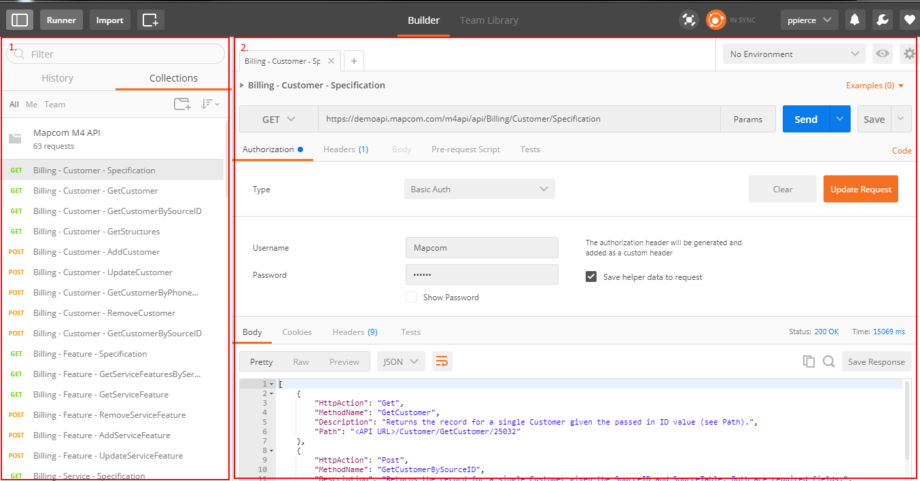
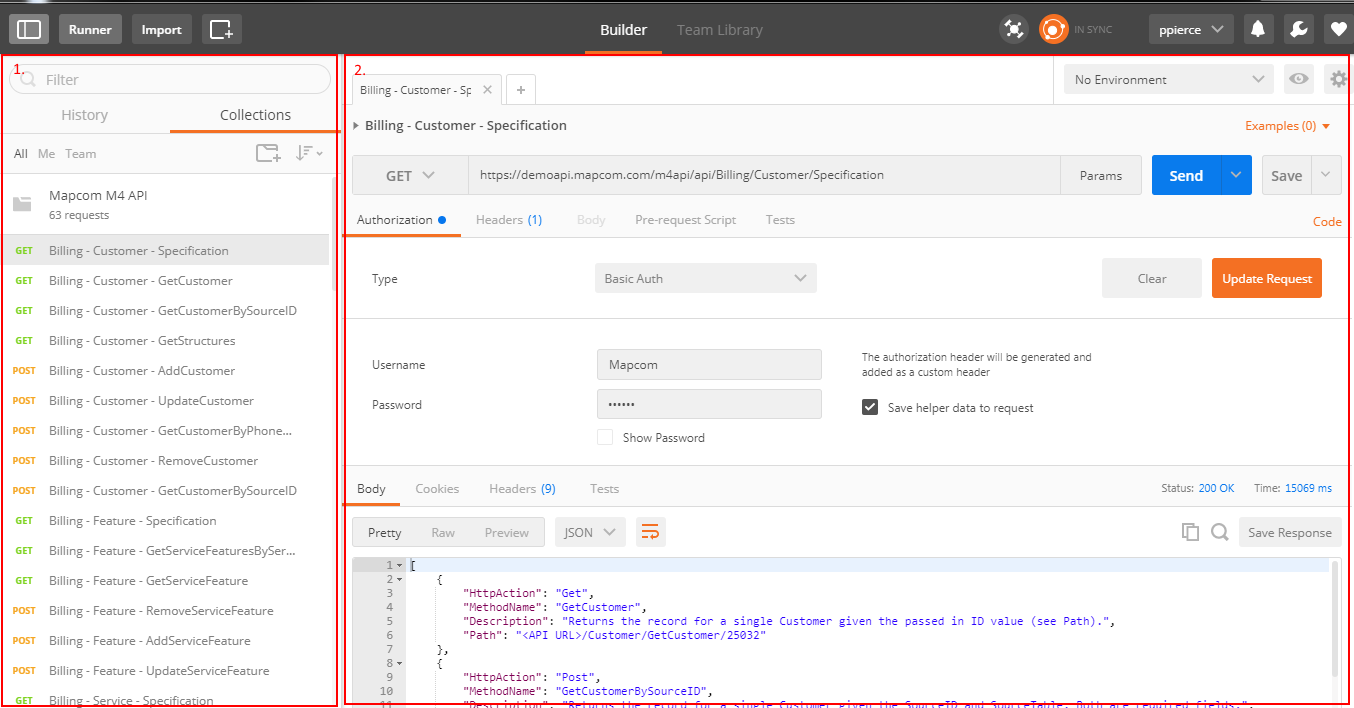
The main Postman GUI has two main sections:
- Collections: The left side of the GUI collates the API calls you have saved into user-defined buckets.
- API Method: The right side of the GUI displays details for an individual API call.
Creating a New Test Call
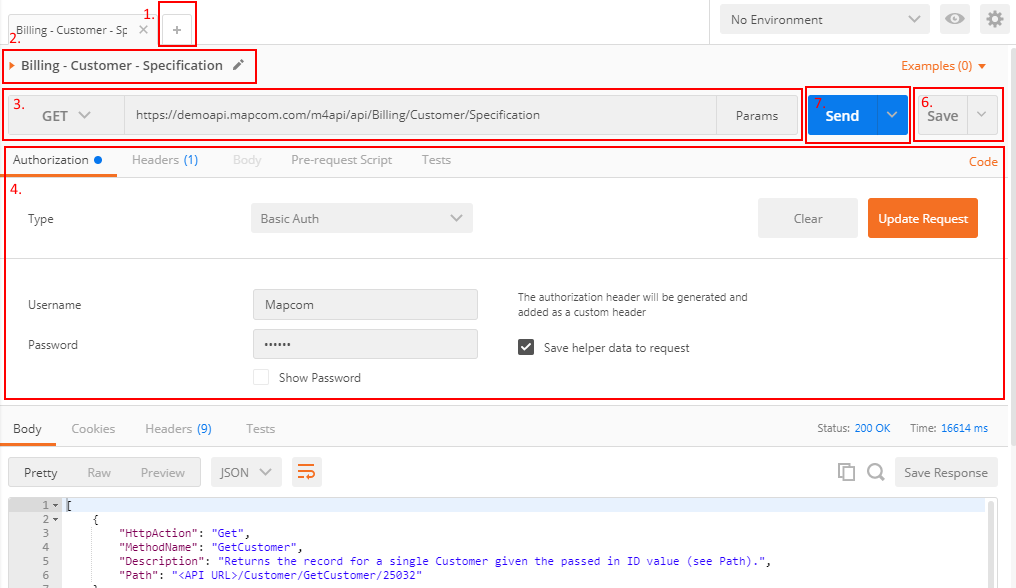
- To add a new test call to the API, click the “+” symbol on the right side of the GUI.
- Type in a name for the call.
- Choose the HTTP verb and type in the URL.
- If you are accessing with the demo API hosted by Mapcom, the base URL will be “https://demoapi.mapcom.com/m4api/api”.
- If you are accessing the API hosted by your company, contact your IT administrator for the base URL they have configured.
- Click “Authorization”.
- Choose “Basic Auth” as the Type.
- Enter the username and password provided by Mapcom or your IT administrator.
- Click “Update Request”.
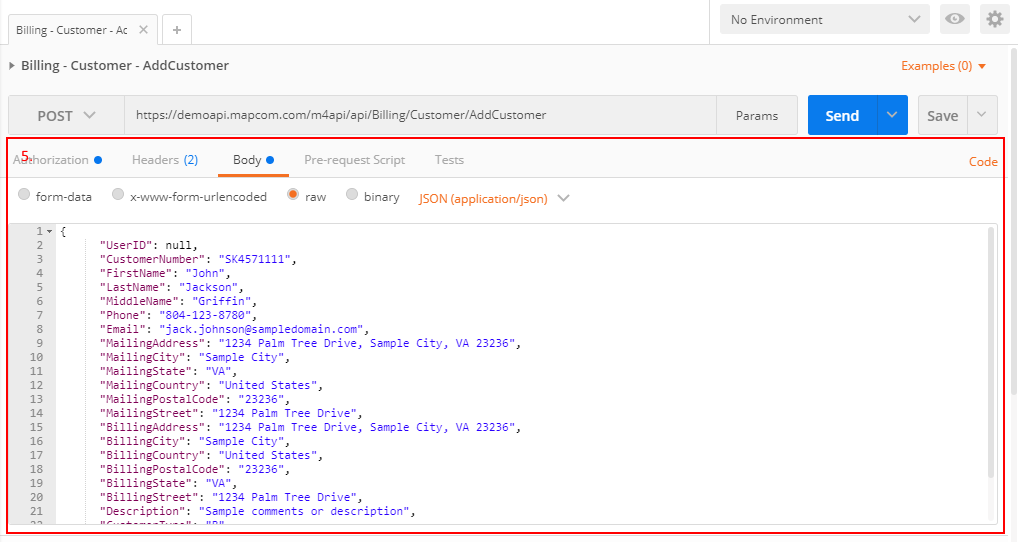
- If you are working with a POST method, you will need to fill out a post body to send to the API.
- Click on “Body” in the middle portion of the GUI.
- Choose the “raw” radio option.
- Choose “JSON (application/json)” from the drop-down.
- Enter the necessary fields in JSON format.
- Click “Save”.
- Click “Send”.
- If all the steps above were completed correctly, Postman will return the result in the bottom right “Response” portion of the GUI.
Sample Data
In most situations, the M4 API will be hosted on a client-provided IIS server inside the client’s network. In those cases, API users should work with their IT administrator to gain access to the API. As an alternative for development teams during early periods of deployment, Mapcom has an externally available demo API that pulls data from a testing database. To receive access to the demo API, please email api@mapcom.com.